When we want to create our own Opencv kurento custom module, we need to call to the filter
function publishIpCamera() { var jsonBody = { type: "IPCAM", role: "PUBLISHER", data: "IP CAMERA", kurentoOptions: { allowedFilters: ['FaceOverlayFilter', 'ChromaFilter', 'GStreamerFilter'] <--- **call the filters over here** },
I runned the tutorial, is it I have to have the filterslike FaceOverlayFilter’, ‘ChromaFilter’, ‘GStreamerFilter’ at kurento lower level then it works ??
When calling path POST /openvidu/api/connection to publish the IP CAM, you must provide in the kurentoOptions.allowedFilters array the name of your custom filter, so the connection has permissions to use the filter. In fact, in this use case that is not even necessary, as you will be forcing the filter application from a different connection (the MODERATOR participant) over the IP CAM stream. When a MODERATOR connection forces the application of a filter over a third connection, that connection doesn’t need any kind of special permissions to use the filter.
So the jsonBody could be something as:
	role: "PUBLISHER",
	data: "IP CAMERA",
	kurentoOptions: {
		allowedFilters: ['Opencvsample']  <---- This line is not needed as you said ??
	},
	rtspUri: "rtsp://admin:password@192.1.1.169/h264Preview_01_main"
Hello @pabloFuente
I have following filters at kurento-media-server
root@df5658176b0b:/# kurento-media-server -v
Kurento Media Server version: 6.16.0
Found modules:
        'chroma' version 6.16.0
        'core' version 6.16.0
        'elements' version 6.16.0
        'filters' version 6.16.0
        'opencvsample' version 0.0.1~0.g8fe867d
        'opencvtest' version 0.0.1~0.g5732698
if we wont pass the filter name, how does it get to know which filter we are using as you mentioned.
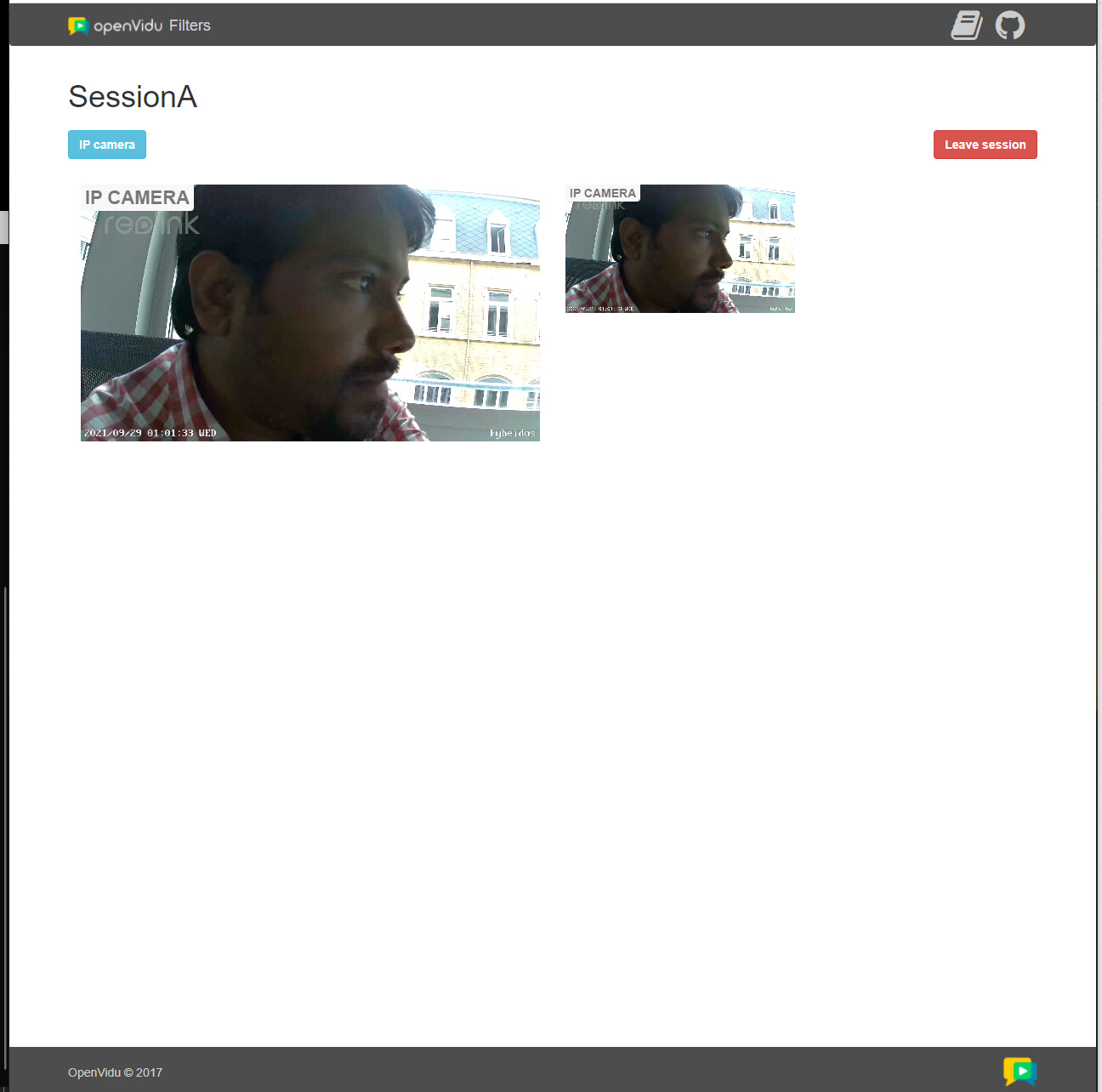
I tried it out with chroma filter and I can’t see any changes as shown in picture
You are missing the point here. There are usually 2 steps to apply filters:
When creating the Connection object you normally have to pass the list of filters that will be allowed to be applied to the streams owned by the Connection. This is just a security measure. It has nothing to do with the actual application of the filters. The documentation is very clear about this: OpenVidu Docs
Then, filters must be applied over the Stream object from the client side. Using openvidu-browser library, from your application’s frontend. Again, just like the documentation says: OpenVidu Docs. You can apply one filter at a time. You tell which filter to apply here, not in step 1). Step 1) is just for security reasons.
Now, the only thing different in your use case is that IP cameras are not regular users connecting from a browser. A different Connection with role MODERATOR must apply/remove/manage the filters over the IP Camera stream. That’s it. That’s what the example I provided shows.
Hello @pabloFuente
Thank you so much for the explanation.
It’s getting much complicated for me to understand these terms from .js file
What should I do in order to have the filters apply from the client side.
As said Frontend was never my thing, I’m trying to learn through the process
But this seems to be bouncer for me.
I’m sorry, but I don’t know what else can I do for you. I have explained the 2 main concepts you must follow to apply a filter over an IP Camera stream (first use the REST API to start the IP Camera connection, then use a MODERATOR client connection to manage the filter over the IP Camera stream).
I provided a fully working example that you can just run and test on your own in like 5 seconds. That’s a good starting point, just get the example, read it and understand it. I’m afraid I can’t do much more for you.
You need at least a little bit of JS knowledge to use OpenVidu, as you will need with any other web-based platform. I don’t know what you are doing wrong, because I don’t know exactly what you want to do or what your application looks like.
If there’s any other question which is not like “My app doesn’t work and I don’t know why”, if it is something specific, then I might be able to help you. Regards.
Hello @pabloFuente
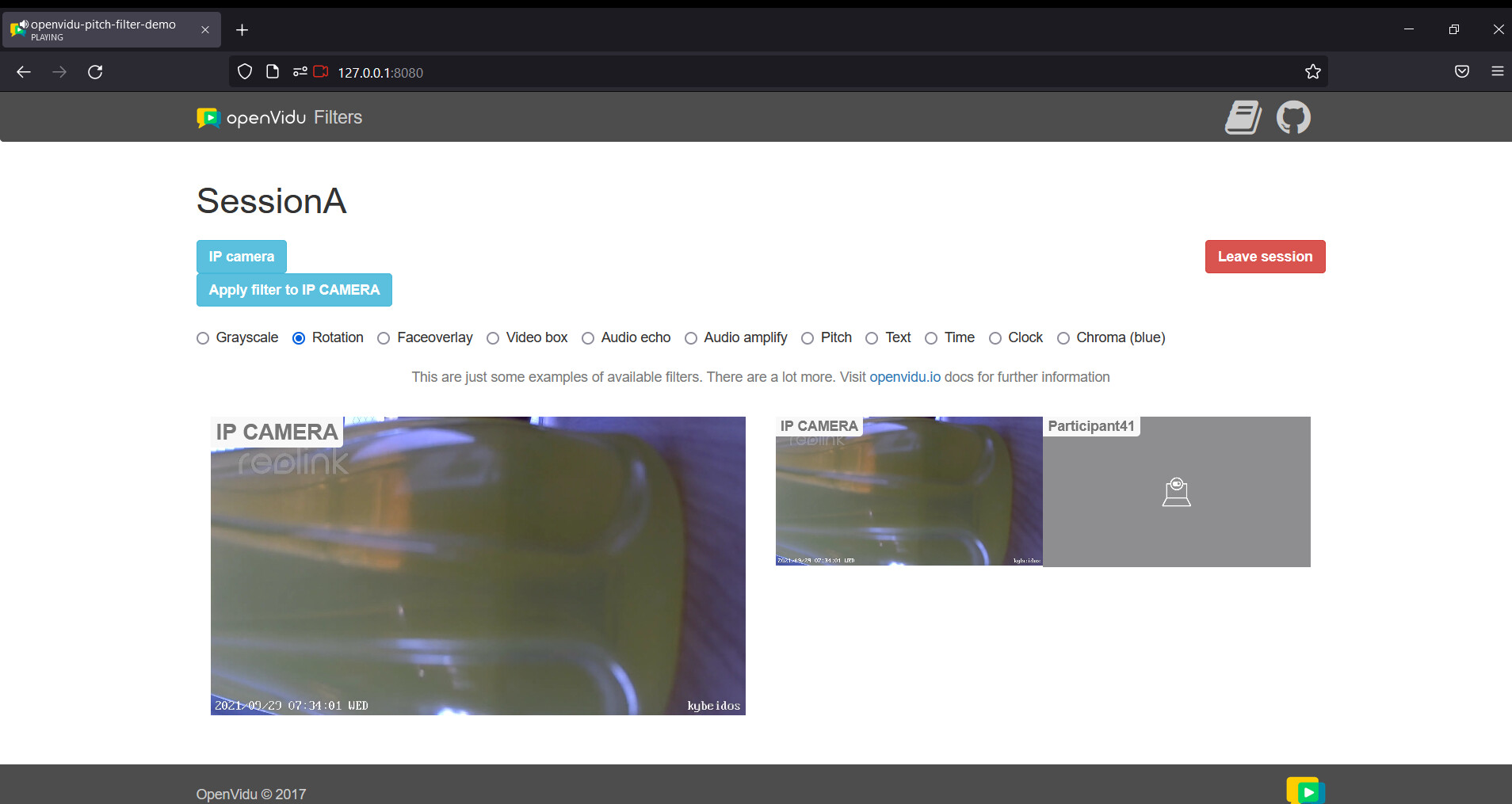
There was a problem with the browser still now I was running it on chrome when later I switched to firefox I can see all the options on screen as shown in picture below.
And also I get to see the options from one particular http:// which is third one
While remaining http:// I can’t see any filter switch option like earlier link did.
Why it shows strange behaviour for other http:// links ??
Available on:
  http://192.168.56.1:8080
  http://10.1.1.93:8080
  http://127.0.0.1:8080            only from this particular http:// but not other links
  http://172.17.224.1:8080
  http://172.25.48.1:8080
And May I request you to address the above question please ??
Hello @pabloFuente
I do have question regarding custom kurento opencv module ?
How to test the custom kurento module filter which is created at lower level ??
As in the code is written in C++, and I need to test it before plugin into openvidu
May I know how this is done ??